
Model Context Protocol (MCP)
Cloud-IAM exposes its control plane to AI assistants through the Model Context Protocol. Once enabled, an MCP-aware client (Claude Desktop, ChatGPT, Cursor, ...) can list your deployments, inspect their audit logs, check installed extensions or compute a billing synthesis straight from inside the assistant.
MCP is currently in beta
The Cloud-IAM MCP server is available as a beta feature. It's open to every organization on Cloud-IAM — an ORG_OWNER just needs to turn it on from the console.
Connecting an assistant is a three-step path:
- An
ORG_OWNERenables MCP for the organization from the Cloud-IAM console. - You paste the connection URL into your MCP client.
- The client opens a browser, you sign in with your usual Cloud-IAM account, and the assistant gains access to the tools you are allowed to use.
Tool calls run with your identity, with the same role and permissions you have on the Cloud-IAM console. The assistant never sees a shared API key, and every action is logged in the audit trail under your user.
Who can use MCP?
MCP is available to any organization on Cloud-IAM. Only members with the ORG_OWNER role can enable or disable MCP for the organization. Once enabled, any member of the organization can connect their own AI assistant.
How to enable or disable MCP for your organization
MCP is managed at the organization level: a single switch enables or disables the Cloud-IAM MCP server for every member of the organization. Newly created organizations have MCP disabled by default, so an ORG_OWNER must explicitly enable it before any AI assistant can call Cloud-IAM tools.
Enable the Cloud-IAM MCP server from the console
- Open the Cloud-IAM console and select the organization you want to configure.
- Navigate to
Settingsfrom the side menu. - Open the
MCPtab. - Toggle Enable MCP for Cloud-IAM tools on.
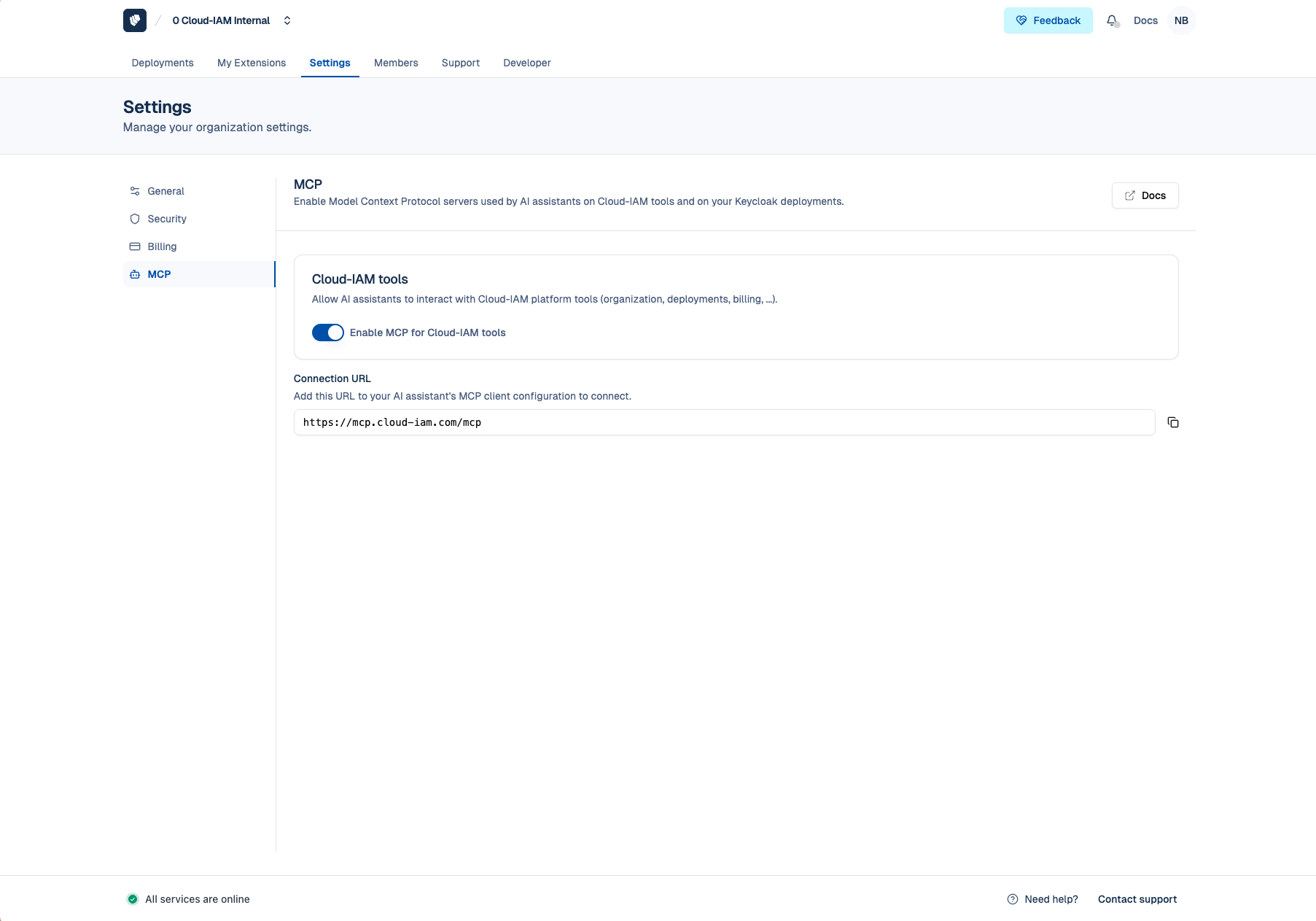
As soon as the switch is on, every member of the organization can connect their AI assistant to the MCP server and use the available tools. Turning the switch back off immediately revokes access. In-flight tool calls are denied by the gateway with a clear message:
Access denied: this MCP tool is disabled by your organization's MCP preferences. Please contact your organization administrator.
How to retrieve the MCP server URL
The Cloud-IAM MCP server is exposed at a single public URL, shared by every organization:
https://mcp.cloud-iam.com/mcpYou can also copy the URL straight from the console once MCP is enabled:
- Open
Settings→MCP. - Below the switch, the Connection URL field appears as soon as the server is enabled.
- Click the copy icon and paste the URL into your MCP client configuration.
Discovery endpoints
The gateway also publishes the standard MCP / OAuth discovery documents. Most clients only need the connection URL above and will resolve the rest automatically:
https://mcp.cloud-iam.com/.well-known/oauth-protected-resourcehttps://mcp.cloud-iam.com/.well-known/oauth-authorization-serverhttps://mcp.cloud-iam.com/.well-known/openid-configuration
How to connect an MCP client
Connecting an MCP client to Cloud-IAM is a regular OAuth 2.1 sign-in flow. You do not create a service account, an API key or a client_id / client_secret: the client registers itself automatically and the end user signs in with their personal Cloud-IAM account.
The first time you connect, you sign in with the same credentials you use on console.cloud-iam.com, you grant consent once, and the token is cached locally by the client. When the token expires the client refreshes it silently in the background.
Supported clients
| Client | App | Website | CLI |
|---|---|---|---|
| Claude | ✅ | ✅ | ⚠️ Not supported yet |
| ChatGPT | N/A | ✅ | N/A |
| Mistral (Le Chat) | N/A | ✅ | N/A |
Claude Code (CLI) not supported yet
Claude Code uses a native OAuth flow with a loopback redirect (RFC 8252), which isn't allow-listed on the Cloud-IAM MCP endpoint yet. Support is planned, no firm date yet.
Claude (web and desktop)
In Claude, MCP servers are exposed as connectors.
- Open Claude and go to
Settings→Connectors→Add custom connector. - Give it a name (for example
Cloud-IAM). - Paste the connection URL:
https://mcp.cloud-iam.com/mcp. - Click
Addand follow the OAuth sign-in prompt that opens in your browser.
Once the connector shows up as Connected, the Cloud-IAM tools become available to any conversation where you enable the connector.
Other MCP clients
Any MCP client that supports HTTP transport with OAuth 2.1 works the same way: point it at https://mcp.cloud-iam.com/mcp and let it run the sign-in flow. For clients configured through a JSON file, the entry is typically:
{
  "mcpServers": {
    "cloud-iam": {
      "url": "https://mcp.cloud-iam.com/mcp"
    }
  }
}
Identity propagation
Tool calls always run with your identity, not the assistant's and not a service account. That means the assistant can only see and act on the organizations and deployments you are a member of, with the role you hold in each. Calls are logged in the deployment / organization audit trail under your user.
Available tools
The Cloud-IAM MCP server currently exposes nineteen tools, grouped below by the resource they target. Most of them accept either organizationName / deploymentName (human-friendly) or organizationId / deploymentId (canonical UUID). The gateway resolves names against the resources visible to the caller, so it is impossible to pivot to an organization or a deployment you are not a member of.
Freemium deployments
Deployment-scoped tools are not available for freemium deployments. The organization-scoped tools (deployment listing, members, billing synthesis) remain available to every member.
Organization-scoped tools
| Tool | Description | Required parameters |
|---|---|---|
cloud_iam_list_deployments | List the managed Keycloak deployments of an organization. | organizationName or organizationId (optional filters: name, q) |
cloud_iam_list_organization_members | List the members of a Cloud-IAM organization (users and service accounts). | organizationName or organizationId |
cloud_iam_list_service_accounts | List only the service-account members of an organization. | organizationName or organizationId |
cloud_iam_get_billing_organization | Compute a billing synthesis: per-deployment stats + aggregated totals (realms, users, MAU, clients, quota-excess flags). | organizationName or organizationId |
Deployment-scoped tools
All deployment-scoped tools take an organization identifier (organizationName or organizationId) and a deployment identifier (deploymentName or deploymentId). The organization identifier is used to enforce the zero-trust check described in the Security model.
| Tool | Description |
|---|---|
cloud_iam_get_deployment | Get the full detail of a single deployment (id, name, status, provider, region, billing cycle, Keycloak admin URL, and other metadata). |
cloud_iam_get_deployment_plan_usage | Get the detailed usage statistics: Keycloak version, realm/user counts with quotas, monthly active users, identity providers, federations, clients, and login events. |
cloud_iam_list_deployment_audits | List the audit log entries of a deployment (backups, status changes, system updates, …), most recent first. |
cloud_iam_list_deployment_extensions | List the extensions installed on a deployment, split between Cloud-IAM platform extensions and client-published extensions, with update-availability flags. |
cloud_iam_list_deployment_custom_domains | List the custom domains configured on a deployment (hostname, certificate expiry, automatic certificate management, proxying, and mTLS mode). |
cloud_iam_list_deployment_keycloak_features | List the Keycloak feature flags enabled or available on a deployment (name, status, type — default / preview / experimental / supported, whether enabled by default). |
cloud_iam_list_deployment_allow_lists | Get the IP / CIDR allowlist configuration: admin access rules and login access rules, each with their name, directive, and source. |
cloud_iam_get_deployment_ad_agent | Get the Active Directory agent configuration and live connection status (broker URLs, agent id, reachability and connection state). Returns null when no AD agent is configured. |
cloud_iam_list_deployment_themes | List the custom login / UI themes configured on a deployment (id, layout, name, creation and update timestamps). |
cloud_iam_list_deployment_exports | List the realm exports triggered for a deployment (id, name, status, start / end timestamps, download URL when available). |
cloud_iam_get_deployment_maintenance_schedule | Get the recurring maintenance window (day-of-week, start time, duration) and any explicitly scheduled maintenance operations. |
cloud_iam_get_deployment_pending_upgrade | Check whether a Keycloak version upgrade is available: returns the available upgrades with their version, release-note URL, and extension compatibility impact. Empty when already on the latest version. |
cloud_iam_list_deployment_backups | List the cold backups registered for a deployment, most recent first (backup id, status, filename, size, duration, storage locations). |
cloud_iam_get_deployment_backup_config | Get the backup schedule (frequency in hours, daily window start time) and the configured storage destinations (provider, region, name). |
cloud_iam_list_deployment_environment_variables | List the environment variables configured on a deployment. Secret variables always have a null value (the API never exposes secret values — only their name and type). |
Common optional parameters
Several tools accept the following options:
| Parameter | Tool(s) | Description |
|---|---|---|
name | cloud_iam_list_deployments | Filter deployments by exact name. |
q | cloud_iam_list_deployments | Full-text search across deployments. |
page / size | cloud_iam_list_deployment_audits, cloud_iam_list_deployment_extensions, cloud_iam_list_deployment_backups | Pagination. Audits are 1-indexed (default page=1, size=20); extensions and backups are 0-indexed (defaults page=0, size=50 for extensions and size=20 for backups). |
installed_only | cloud_iam_list_deployment_extensions | When true (default), return only installed extensions; set false to include marketplace extensions that are available on the deployment but not installed. |
Identifying resources by name
For convenience, every tool that targets an organization or a deployment accepts a name instead of an ID. The gateway resolves the name against the caller's own resources before authorization runs:
organizationName: "Acme Corp"is resolved to its UUID by listing the caller's organizations.deploymentName: "kc-prod"is resolved within the resolved organization by listing its deployments.
If the name is ambiguous (two organizations / deployments with the same name), or does not match any resource the caller can see, the gateway returns a 400 Bad Request with a clear message and asks for the explicit ID instead.
Security model
A few things to know about how MCP access is enforced:
- Every request to the gateway is authenticated with a user JWT issued by Cloud-IAM's Keycloak realm. No anonymous access, no static API keys.
- Tool calls go through the same authorization rules as the Cloud-IAM Console: the caller must be a member of the target organization, and the organization role controls which actions are allowed.
- The gateway performs an RFC 8693 token exchange so that the downstream Cloud-IAM API call carries the end-user identity, not a service account. Every action is therefore traceable to the actual user in the audit logs.
- Tool calls that target a deployment also enforce a zero-trust check that the deployment really belongs to the caller's organization. Pairing a legitimate organization id with someone else's deployment id is rejected.
Troubleshooting
missing or invalid bearer token
Your access token is missing, malformed or expired. Sign out of the MCP client and let it run the OAuth flow again.
Access denied: this MCP tool is disabled by your organization's MCP preferences
The Cloud-IAM MCP server is disabled at the organization level, or an explicit DENY override is in place for this tool. Ask an ORG_OWNER to enable MCP from Settings → MCP, or to remove the override via the REST API.
Access denied: deployment-scoped tools are not available for this deployment's plan
The target deployment runs on the freemium plan, which does not expose deployment-scoped tools. Organization-scoped tools (deployment listing, members, billing synthesis) remain available, and upgrading the deployment to a paid plan unlocks the full toolset.
Access denied: you do not have the required role to use this tool
You are authenticated but your role on the target organization does not allow this action. See organization roles for the full role/permission matrix.
no organization named '<name>' found among your organizations
The organizationName you passed does not match any organization you are a member of. Either fix the spelling, pass the canonical organizationId, or ask to be invited to that organization.
organization name '<name>' is ambiguous
Several of your organizations share the same name. Pass organizationId (UUID) instead of organizationName to disambiguate.
Need help with MCP?
If you have any questions or need assistance, submit a ticket through the Ticket Center and our support team will guide you through the process.