
Migrating to the new Extensions Management
If you previously managed custom extensions from the deployment settings, you'll notice that this section has been replaced by a new system. This page explains what changed, what happens automatically during migration, and where to find the relevant tutorials.
Your extensions are safe, no urgent action required
Your existing extensions remain installed and functional on all your deployments.
What is changing?
Cloud-IAM is replacing the legacy Custom Extensions system with a new centralized extension management experience. The Custom Extensions tab in deployment settings has been replaced by two new features:
- My Extensions — manage your extensions at the organization level: upload, version, validate, and document them in a centralized library
- Extensions Management System — manage extensions at the deployment level: browse, install, update, and uninstall on individual deployments
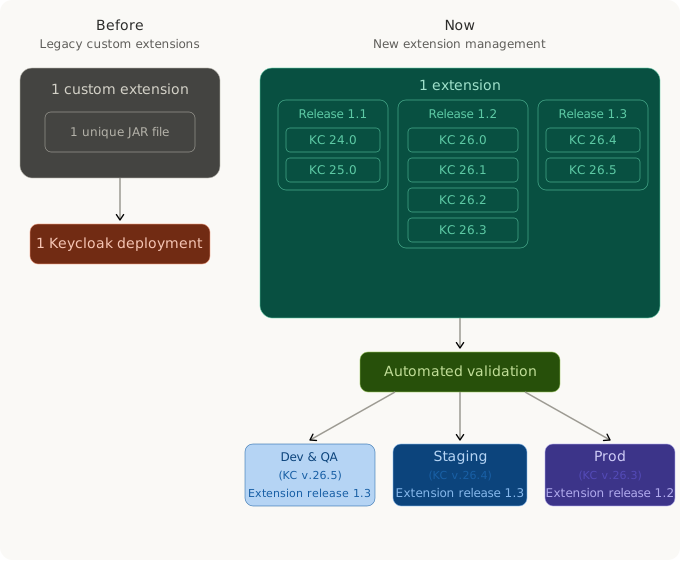
Why this change?
This new system was designed to solve the most common pain points our customers experienced with the legacy Custom Extensions:
- No more duplicate uploads — a single extension in My Extensions can be installed on all your deployments. No need to upload the same JAR separately to staging, pre-production, and production.
- Full version traceability — each extension supports multiple releases, each with its own JAR files, Keycloak compatibility range, and release notes. You know exactly what version runs where.
- Validated before install — every release goes through an automated technical validation before it can be installed, reducing the risk of breaking authentication flows in production.
- Document your customizations — maintain full traceability of your extensions and share knowledge across your teams, reducing technical debt over time.
- Streamline your Keycloak upgrades — test extension compatibility with new Keycloak versions automatically and reduce upgrade testing time. Staying up to date has never been easier.
- Cloud-IAM's Extensions — in addition to your own extensions, you can now browse and install extensions published and maintained by Cloud-IAM developers.
What happens during migration?
The migration from legacy custom extensions to the new management system is fully automated by Cloud-IAM, no action is required from your side to trigger it.
Here is what happens for each existing custom extension when the migration is initiated:
- An extension is created in your organization's My Extensions library, retaining the original name, JAR file, and description. The extension name is appended with (migrate) followed by the extension ID to help you identify migrated entries. A default description is added: "This extension was automatically migrated from a legacy JAR file (your_extension_name.jar). Please update this description with relevant documentation."
- A single release is created for the migrated extension, declared as compatible only with the Keycloak version running on the deployment at the time of migration.
- The extension remains installed on the original deployment. The internal directory structure is updated without restarting your environment, your Keycloak continues to work without interruption.
Duplicate extensions may appear
If the same custom extension was installed on multiple deployments (e.g. development, staging, production), a separate entry is created in My Extensions for each instance. This is intentional: it preserves each deployment's specific extension version and avoids cross-environment side effects. For example, if you had the same JAR on both your test and production environments, you will see two extensions after migration. See the post-migration actions table to consolidate them.
What do I need to do after migration?
Your extensions are functional and your deployments are not affected. We recommend the following actions to take full advantage of the new system.
Update extension names and descriptions
Migrated extensions have auto-generated names (appended with (migrate) and the extension ID) and a placeholder description. We recommend updating them so your team can easily identify each extension. See How to edit an extension.
Merge duplicate extensions
If the same custom extension was installed on multiple deployments, the migration created a separate entry for each instance. You can consolidate them into a single extension by following these steps:
- Choose a primary extension — From the duplicates in My Extensions, select the one you want to keep as the reference entry.
- Update its name and description — Edit the extension to replace the auto-generated name and placeholder description, making it easier to identify.
- Expand its compatibility range — If the primary extension needs to support additional Keycloak versions, extend the compatibility range or create a new release with the correct JAR files if they differ between versions.
- Switch your deployments — On each deployment that was using a duplicate, go to In this deployment and:
- Uninstall the duplicate extension with Defer enabled
- Install the primary extension with Defer enabled Once both actions are queued, click
Save and Redeployto apply all changes in a single redeployment or Restart your Keycloak with rolling upgrade.
- Delete the duplicates — Once all deployments have been redeployed with the primary extension, delete the remaining migrated entries from My Extensions. Cloud-IAM prevents deletion of any extension that is still installed on a deployment, so there is no risk of accidentally removing an extension in use.
When installed, each deployment automatically uses the validated release compatible with its current Keycloak version.
Need help with this process?
If you have any questions or need assistance merging your extensions, submit a ticket through the Ticket Center — our support team will guide you through the process.
Expand compatibility ranges
Migrated releases are declared compatible with only one Keycloak version — the one running on the deployment at the time of migration. If your extension works with additional versions, extend the compatibility range to avoid blocking future Upgrade on-demand operations. See How to extend the Keycloak compatibility range of a release.
Enable automatic compatibility checks
To avoid repeating this process manually after each new Keycloak release, enable automatic compatibility checks. Cloud-IAM will automatically test your extensions against new Keycloak versions within 24 hours of their release. See How to configure automatic compatibility checks.
Impact on Upgrade on-demand
The Upgrade on-demand feature now verifies that every installed extension has at least one validated release compatible with the target Keycloak version before allowing the upgrade.
If the upgrade is blocked due to an incompatible extension:
- Go to My Extensions
- Depending on the situation, either:
- Extend the Keycloak compatibility range of an existing release to include the target version
- Create a new release with updated JAR files compatible with the target Keycloak version
- Wait for the automated validation to complete with a Validated status
Prevent upgrade blockers proactively
Enable automatic compatibility checks so Cloud-IAM tests your extensions against new Keycloak versions automatically within 24 hours of release.
Where to go from here
| Topic | Page |
|---|---|
| Upload, version, validate, and document your extensions | My Extensions |
| Install, update, and uninstall extensions on a deployment | Extensions Management |
| Install ready-to-use Keycloak extensions | Cloud-IAM Extensions Catalog |
| Common questions about extensions and pricing | FAQ — Extensions |
| Need help with migration? | Ticket Center |
Frequently asked questions
Will my deployments be affected during migration?
No. The migration preserves your existing setup. Your extensions remain installed and functional on their current deployments throughout the process.
Do I need to re-upload my JAR files?
No. Your existing JAR files are automatically migrated and associated with the new extension entries in My Extensions.
What if a migrated extension fails validation?
If a migrated release shows an Unvalidated status, review the validation details on the release page. This may indicate a pre-existing compatibility issue that was not detected by the legacy system. Create a new release with a corrected JAR file to resolve the issue.
Where did the custom extensions tab go?
The Custom Extensions tab in deployment settings has been replaced by the Extensions section in the deployment menu. See How to access deployment extensions for the new navigation path.
For general questions about extensions and pricing, see the FAQ — Extensions.