Extensions Marketplace
Objectives
The Extensions Marketplace is designed to address the following goals:
- Extension sharing across deployments: Centralize and share extensions across all Keycloak deployments within your organization, avoiding duplication and ensuring consistency.
- Version management and Keycloak compatibility: Track extension versions and their compatibility with Keycloak versions to simplify and secure the upgrade process of your deployments.
- Extension sharing: Publish your extensions to make them available to other organizations and benefit from extensions shared by the community.
- Access to a rich catalog: Discover and install extensions developed by Cloud-IAM as well as those contributed by the community, all from a single catalog.
- Technical validation of extensions: Each extension release goes through an automated technical validation process to verify its compatibility with the declared Keycloak versions. This validation covers technical aspects (correct loading, SPI registration, absence of conflicts) but does not cover functional behavior, which remains the responsibility of the extension publisher.
What is the Extensions Marketplace?
The Cloud-IAM Extensions Marketplace allows you to extend and customize your Keycloak deployments with additional features. Whether you need custom authenticators, identity providers, event listeners, or any other Keycloak SPI implementation, the marketplace provides a centralized way to discover, install, and manage extensions.
The marketplace is built around two main areas:
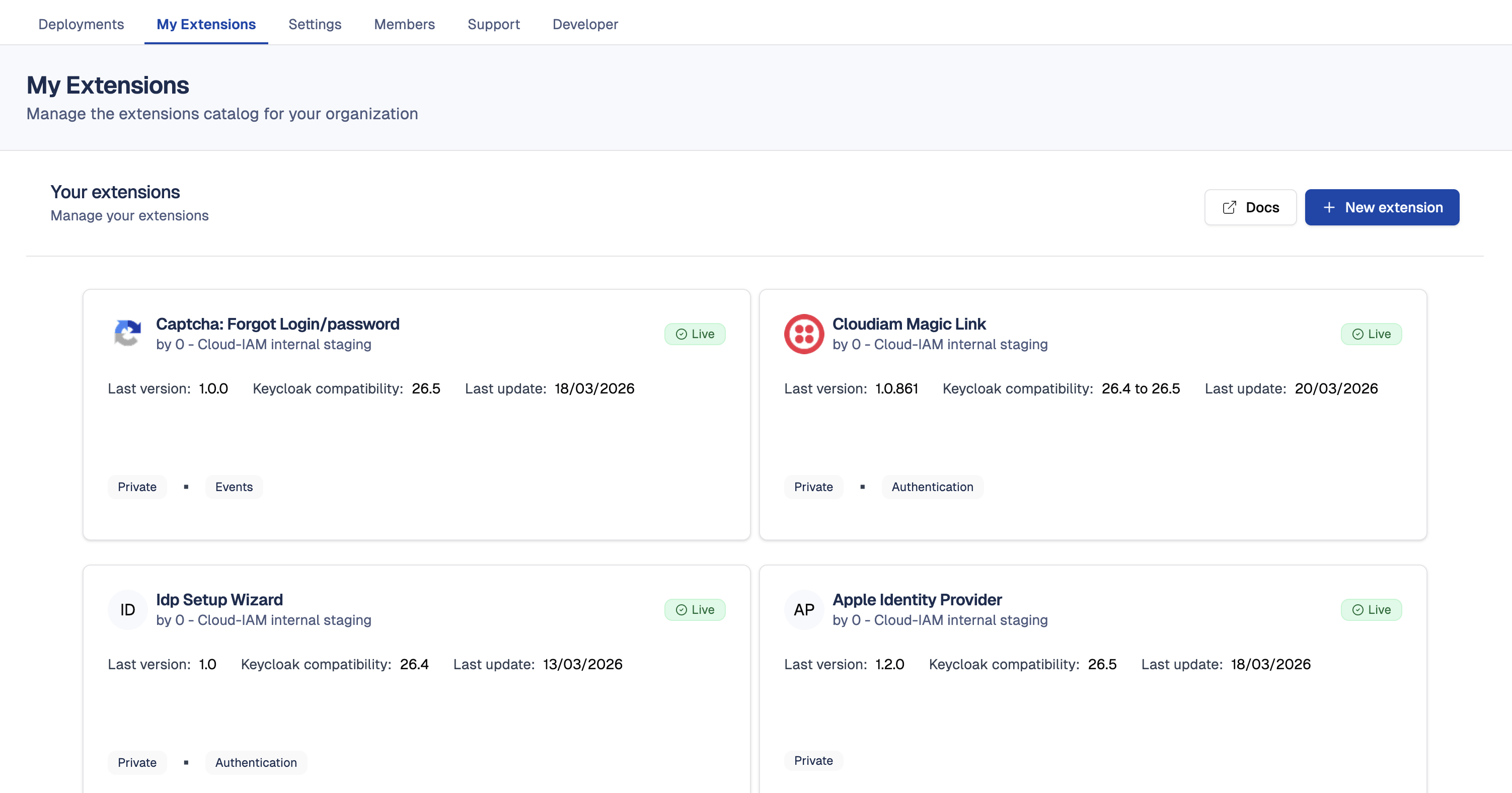
- My Extensions (organization level): Create, publish, and manage your own extensions for the organization
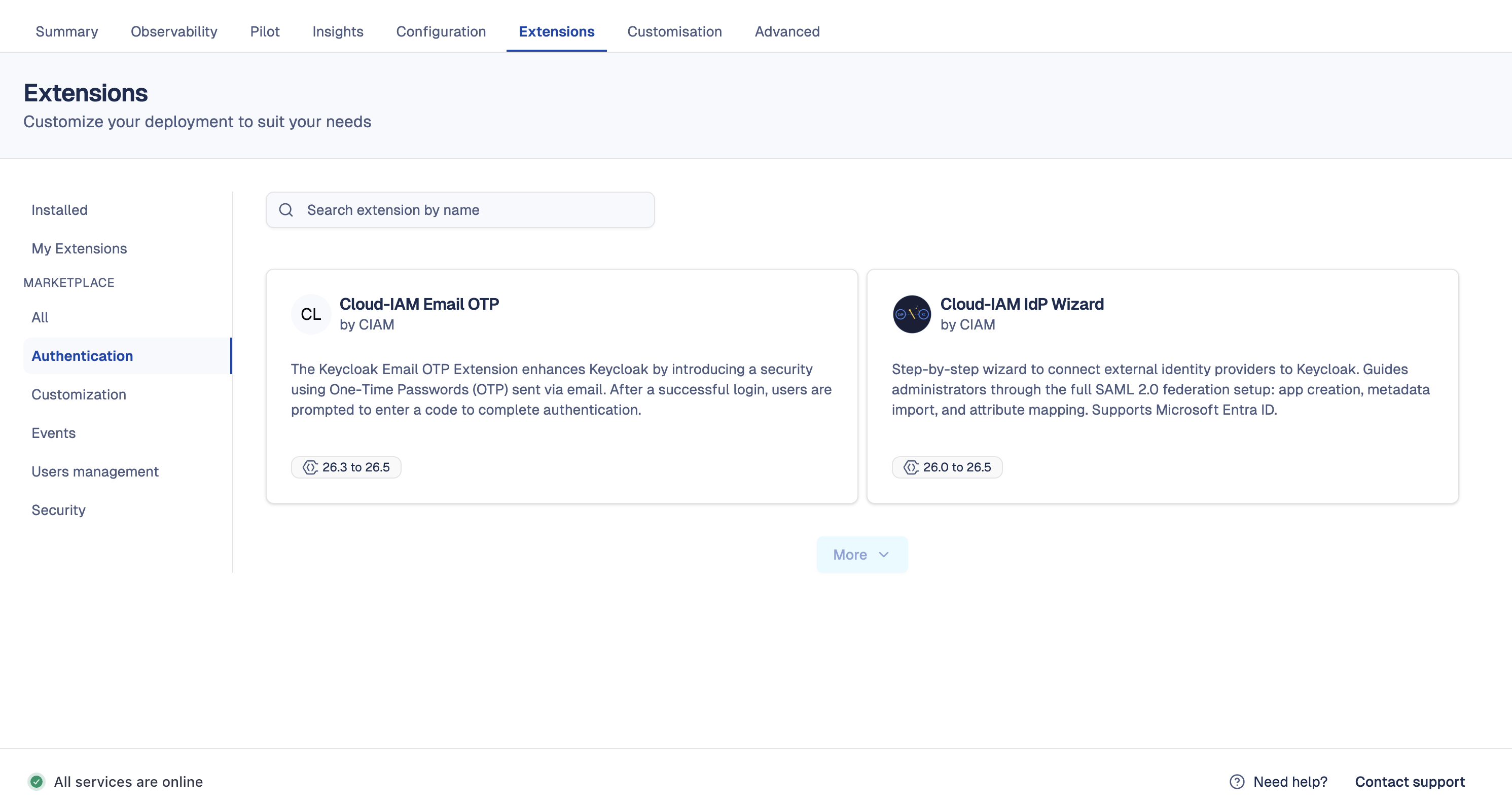
- Extensions (deployment level): Browse the marketplace, install, upgrade, and uninstall extensions on your Keycloak deployments
My Extensions — Managing your organization's extensions
How to access My Extensions?
- Open Cloud-IAM console
- From the organization navigation menu, click on
My Extensions
Here you will find the list of all extensions created by your organization, along with their current status.
How to create a new extension?
Follow these steps to create a new extension:
- Open Cloud-IAM console
- Click on
My Extensionsin the organization menu - Click on the
New extensionbutton - Complete the creation wizard:
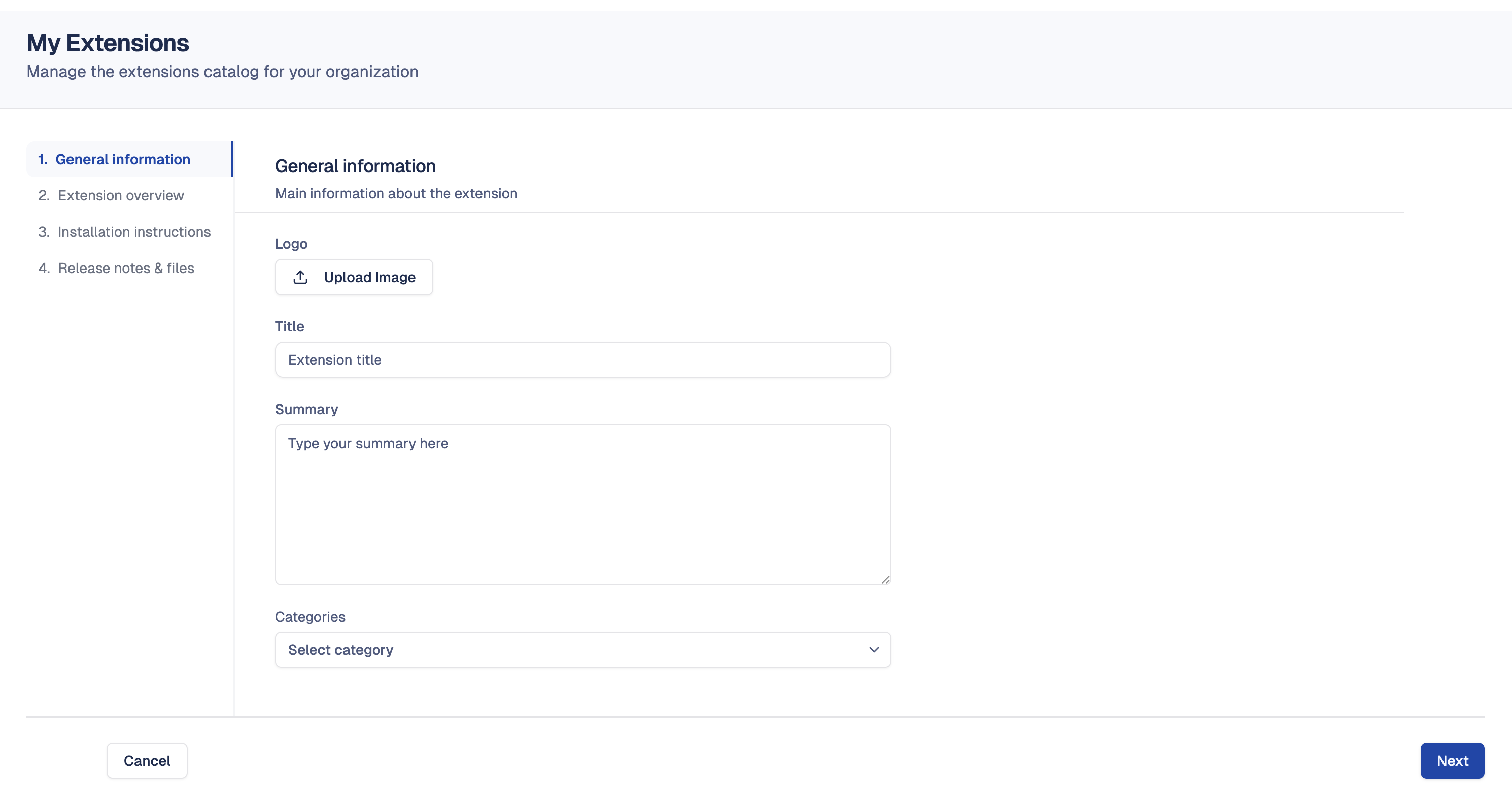
Step 1 — General information
- Enter the extension title and summary
- Upload a logo for your extension
- Select one or more categories
Step 2 — Overview
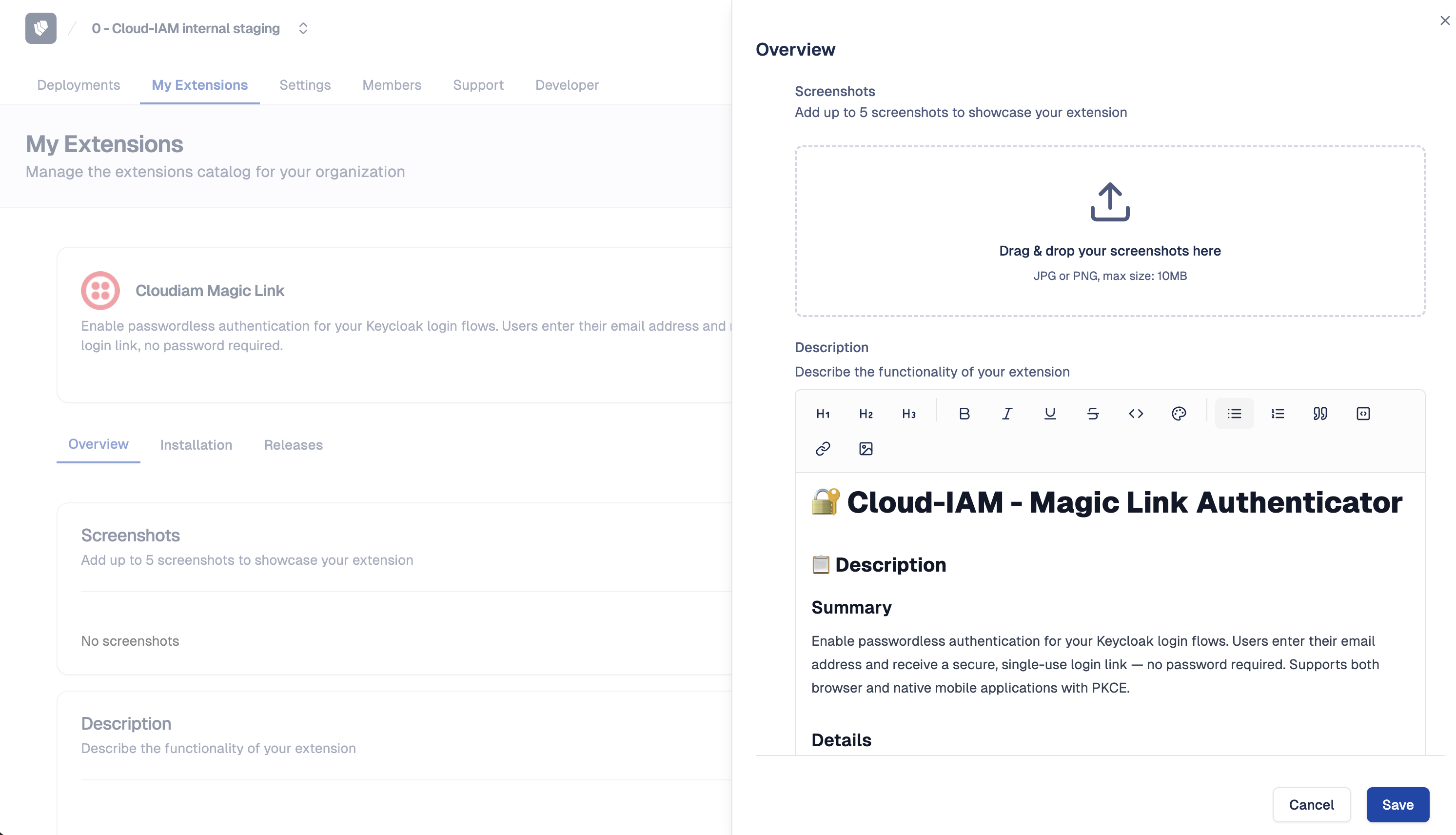
- Write a detailed description of your extension
- Upload up to 5 screenshots to showcase your extension
Step 3 — Installation instructions
- Provide a how-to-install guide to help users set up the extension after installation, for example environment variables to configure or steps to follow in the Keycloak admin console
Step 4 — Release
- Set the version number
- Upload your JAR file(s) (up to 5)
- Select the Keycloak SPI(s) implemented by your extension
- Define the Keycloak compatibility range (oldest to latest supported versions)
- Add release notes to describe what changed in this version, such as new features, bug fixes, or breaking changes
Once submitted, your extension will go through an automated validation process before it can be published.
How to edit an extension?
- Open Cloud-IAM console
- Click on
My Extensions - Click on the extension you want to edit
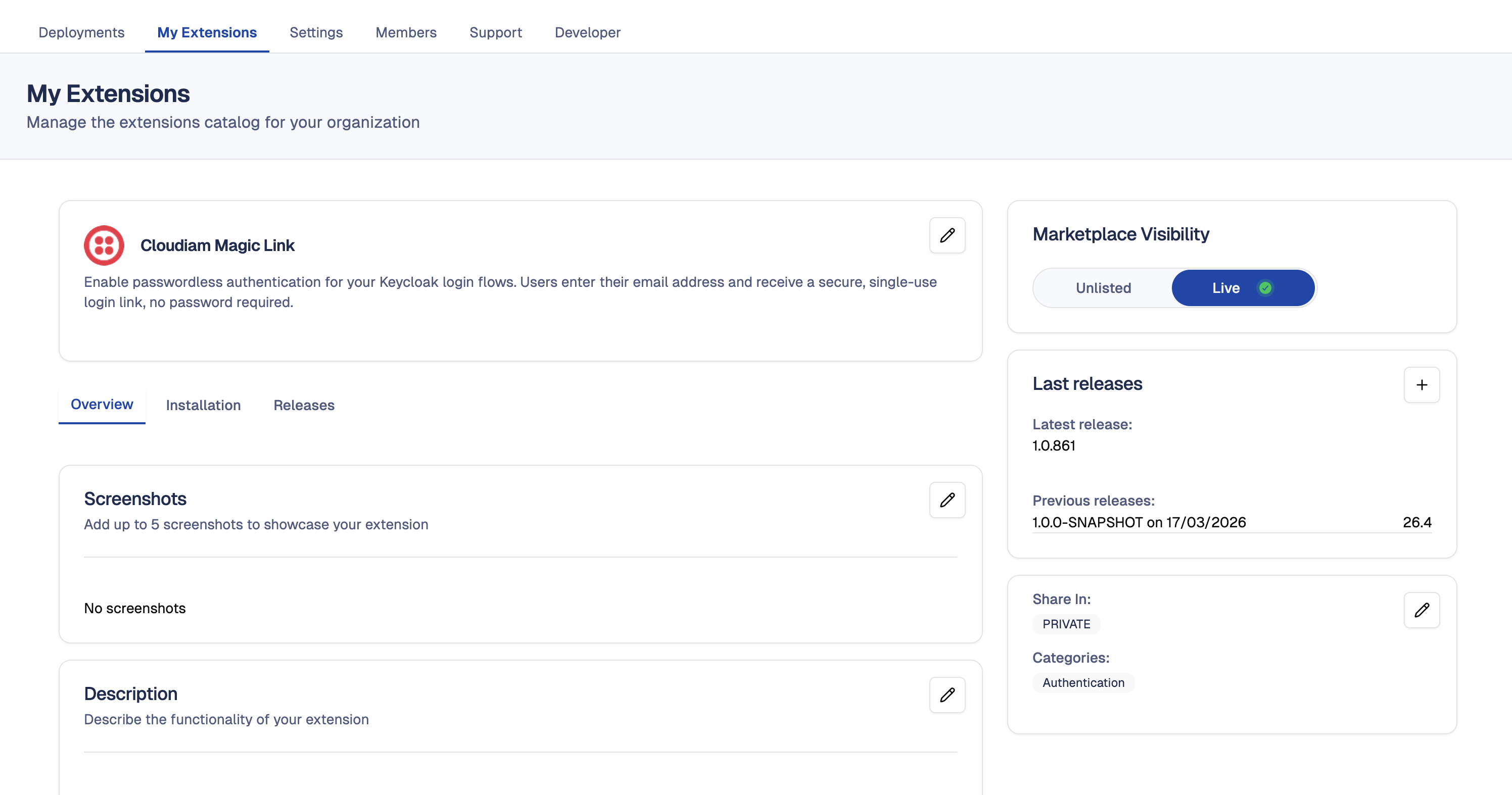
From the extension detail page, you can edit:
- General information: name, summary, visibility, categories, logo
- Overview: description, screenshots
- Installation instructions: how-to-install guide
- Release: version number, release notes, Keycloak compatibility (JAR files cannot be modified on an existing release — create a new release instead)
How to create a new release?
When you need to ship a new version of your extension with updated JAR files:
- Open Cloud-IAM console
- Click on
My Extensions - Click on the extension you want to update
- Navigate to the Releases section
- Click on
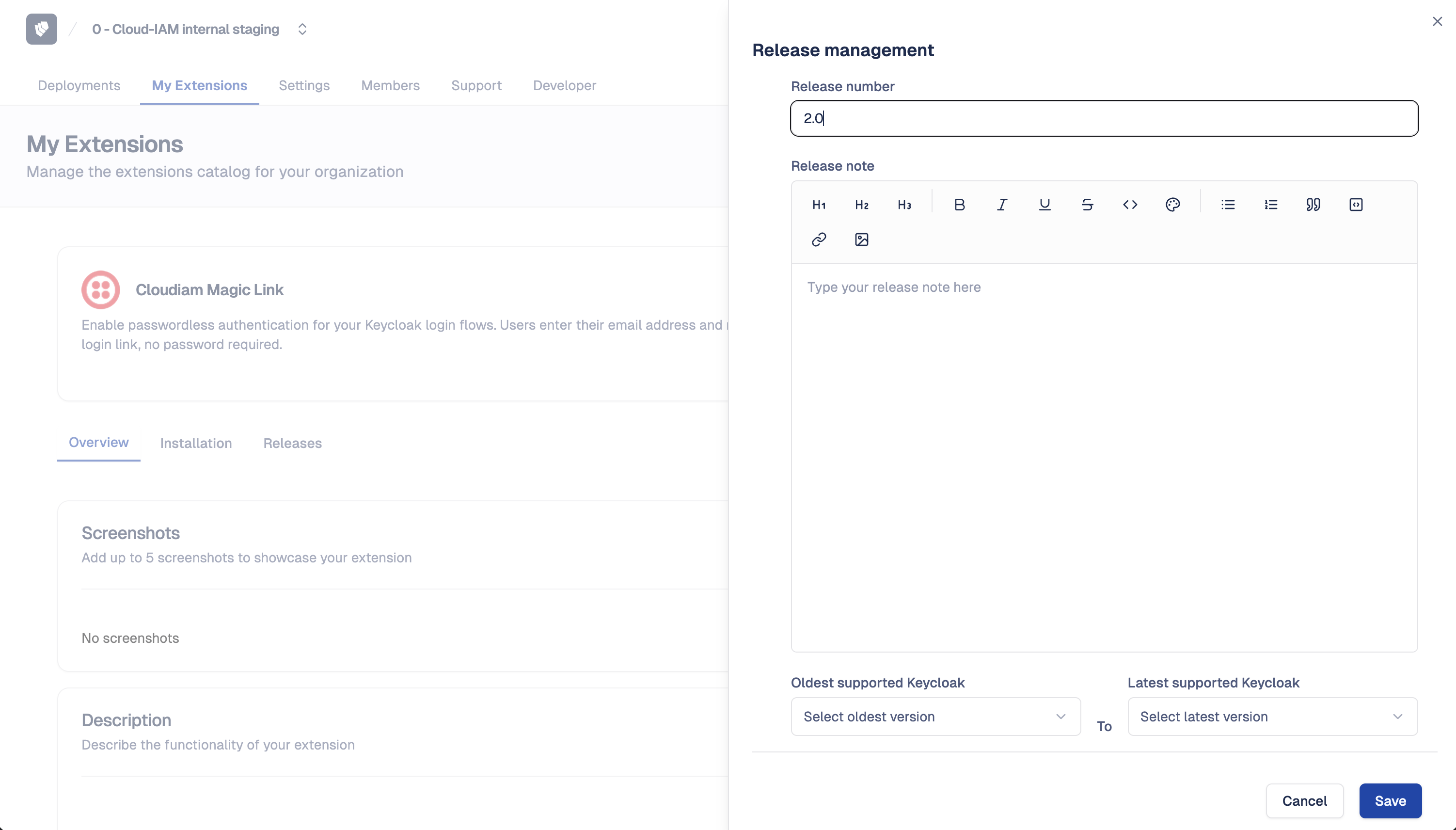
New release - Fill in the release details:
- Version number
- JAR file(s) (up to 5)
- Keycloak SPI(s)
- Keycloak compatibility range
- Release notes
After submission, the release will go through an automated validation process. The release status will transition through the following states:
- Created: Release submitted, waiting for validation
- Validating: Automated compatibility checks in progress
- Validated: Release passed all checks and is ready
- Unvalidated: Release did not pass validation checks
How to publish or unpublish an extension?
Once your extension has a validated release, you can make it available for installation on your deployments:
- Open Cloud-IAM console
- Click on
My Extensions - Click on the extension you want to publish
- Click on
Publish
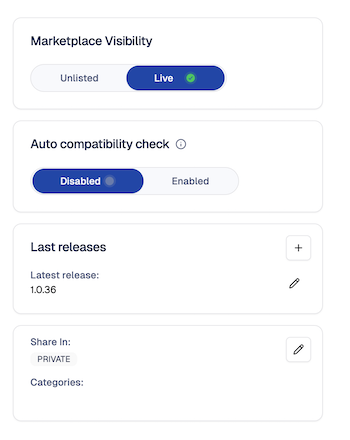
Your extension status will change to Live, making it visible in the marketplace for install.
To remove your extension from the marketplace, click Unpublish. The status will change to Unlisted and the extension will no longer be visible in the marketplace. Existing installations will not be affected.
How to configure automatic compatibility checks?
Cloud-IAM can automatically test your extension against new major Keycloak versions as they are released. When enabled, if your extension already supports the previous Keycloak version, it will be automatically tested and marked as compatible with the new version.
- Open Cloud-IAM console
- Click on
My Extensions - Click on the extension you want to configure
- Toggle the Auto compatibility check option
Deployment Extensions — Installing and managing extensions
How to access deployment extensions?
- Open Cloud-IAM console
- Select the Keycloak deployment you want to manage
- Click on
Extensionsin the deployment menu
From here you can browse the marketplace, view installed extensions, and manage your deployment's extensions.
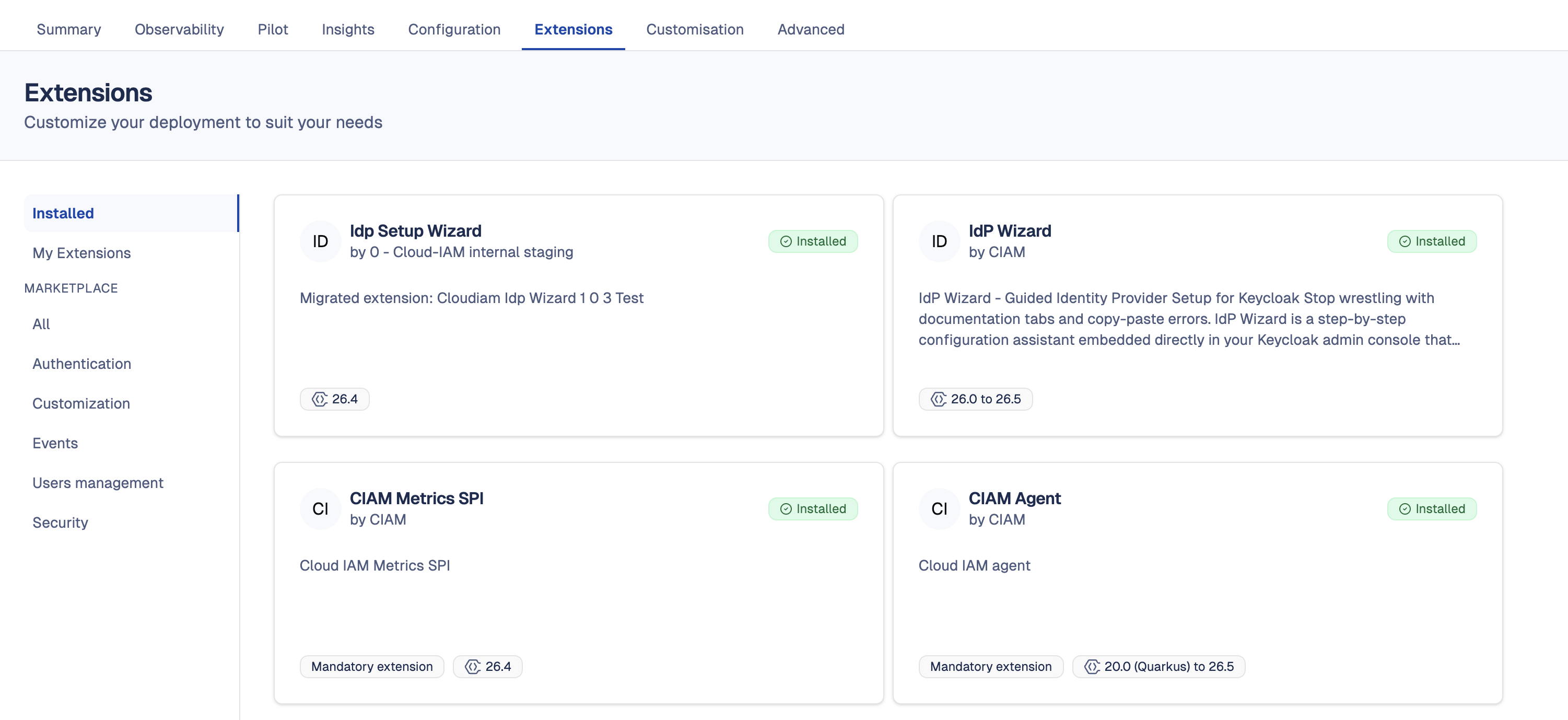
How to browse available extensions?
- Open Cloud-IAM console
- Select your Keycloak deployment
- Click on
Extensions - Browse extensions by category or view All available extensions
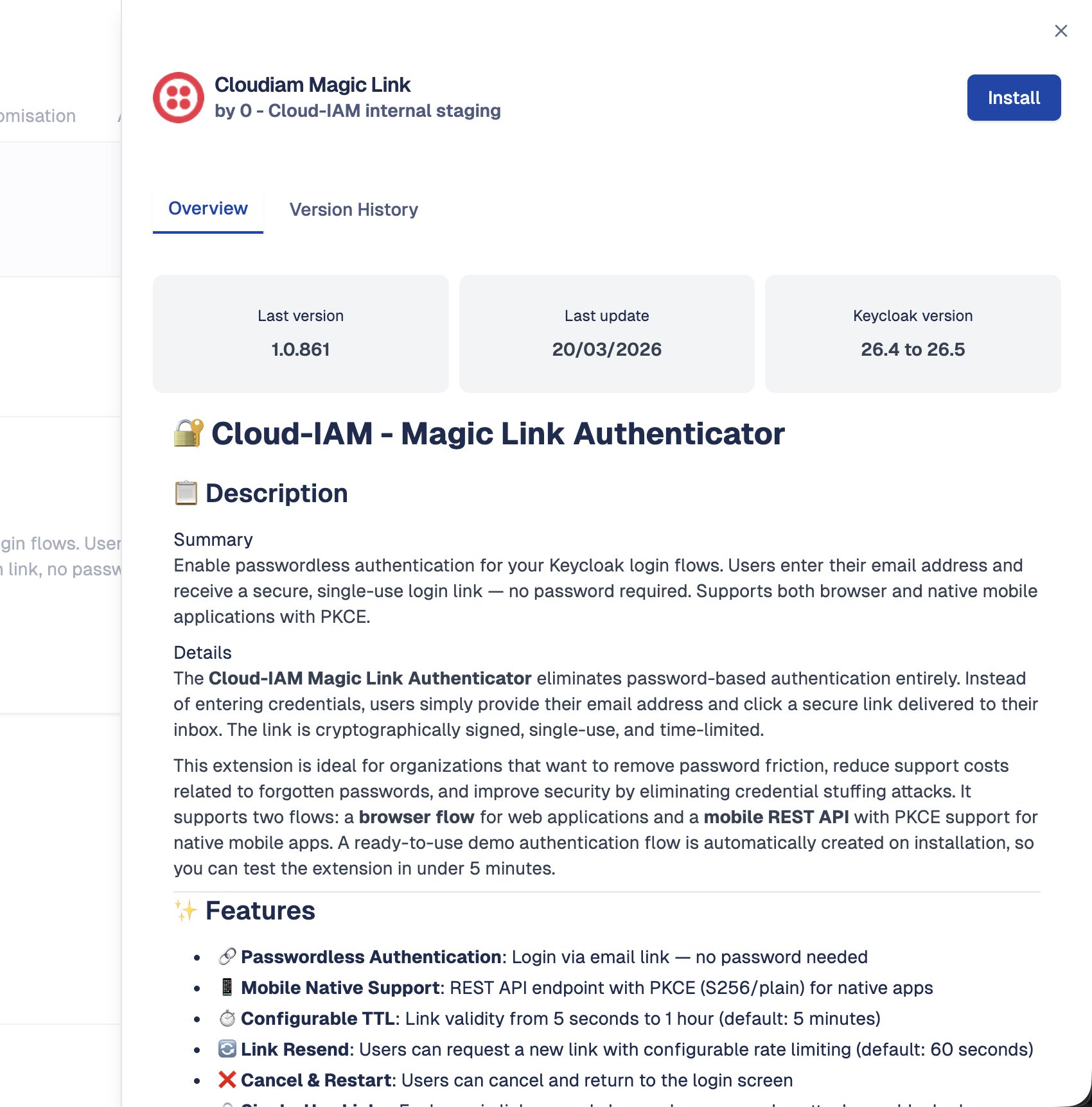
- Click on an extension to view its full documentation, screenshots, and installation instructions
You can also filter to see only extensions from your organization's catalog using the My catalog filter.
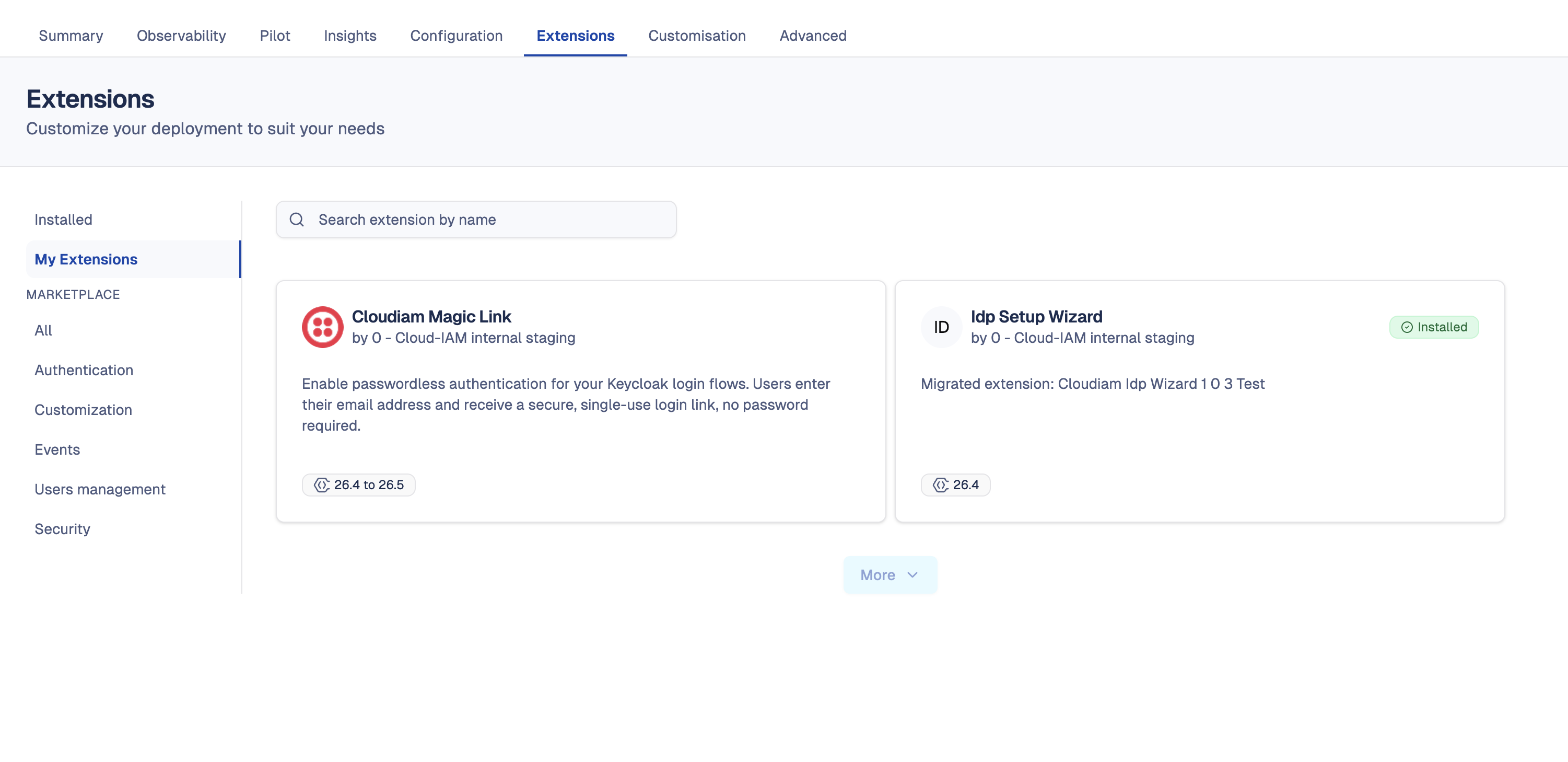
How to install an extension?
- Open Cloud-IAM console
- Select your Keycloak deployment
- Click on
Extensions - Browse or search for the extension you want to install
- Click on the extension, then click
Install - Choose whether to Apply now (triggers a zero-downtime deployment) or defer the change. Deferring can be useful if additional configuration is needed first, such as setting environment variables before the extension is deployed
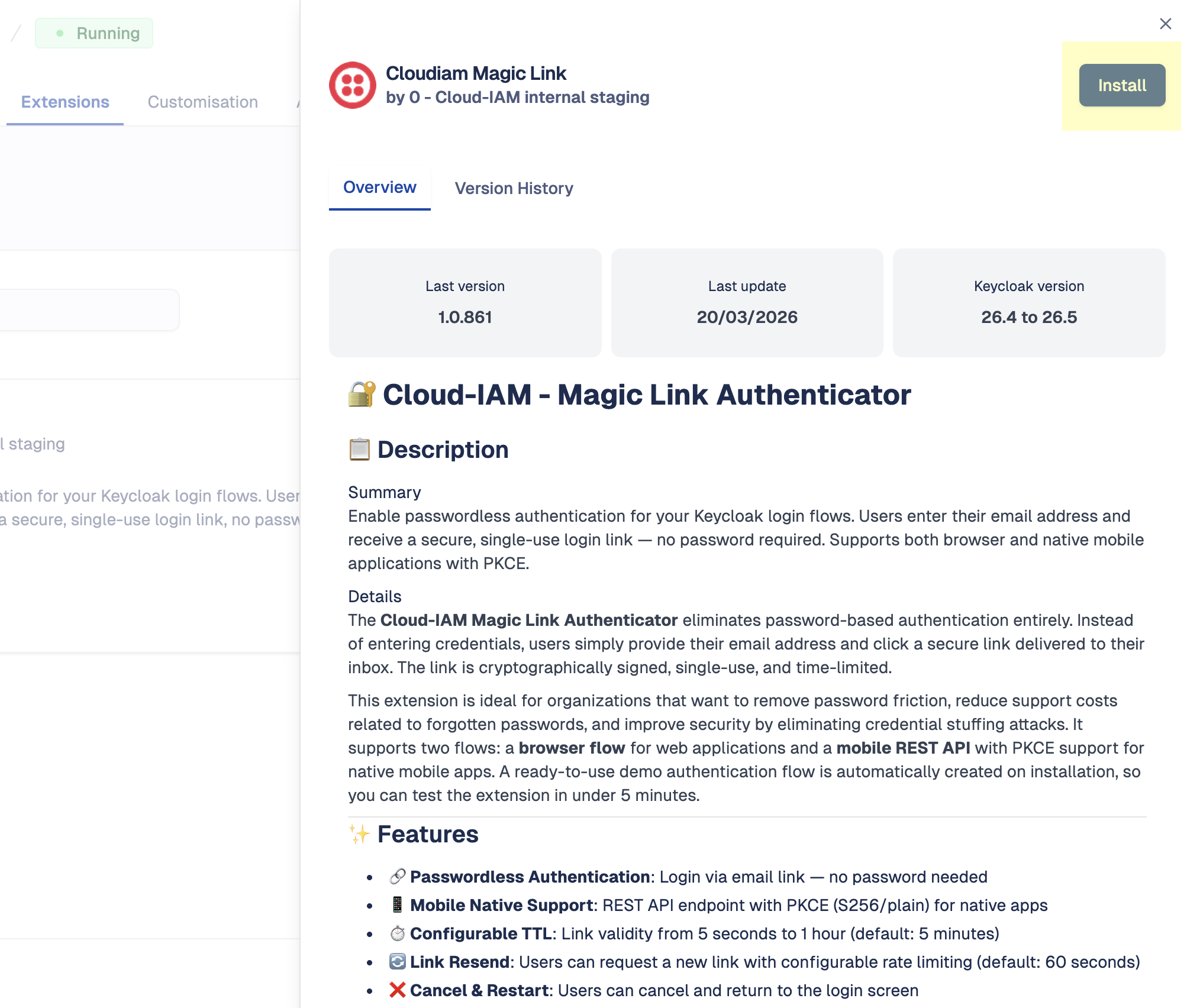
How to upgrade an extension?
When a new version of an installed extension is available, you will be notified:
- Open Cloud-IAM console
- Select your Keycloak deployment
- Click on
Extensions - Filter by Installed to see your current extensions
- Click on the extension with an available update
- Click
Update - Choose whether to Apply now or defer the change
How to uninstall an extension?
- Open Cloud-IAM console
- Select your Keycloak deployment
- Click on
Extensions - Filter by Installed
- Click on the extension you want to remove
- Click
Uninstall - Confirm the removal and choose whether to Apply now or defer the change
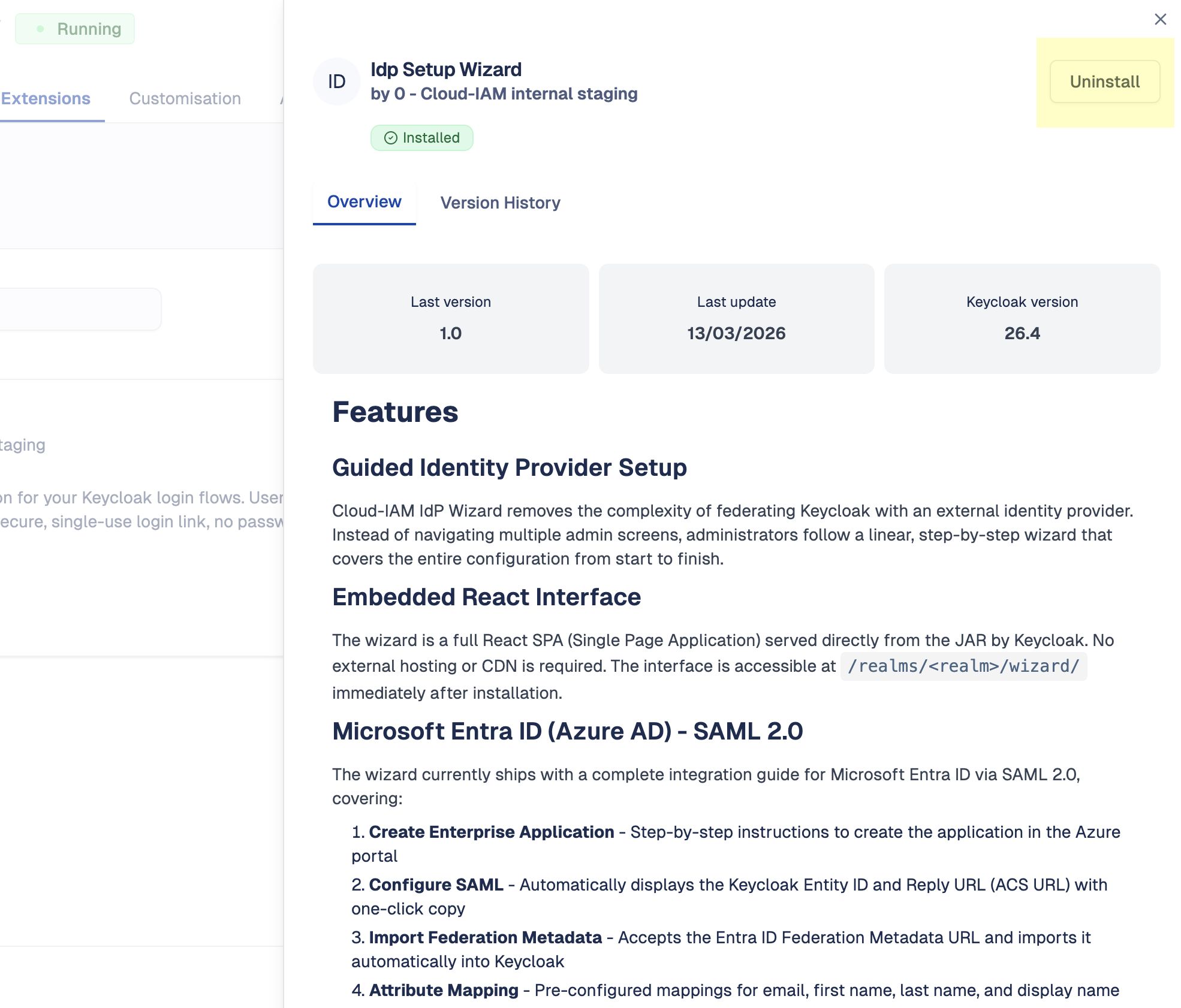
How to view extension documentation?
Each extension in the marketplace comes with documentation provided by its publisher:
- Open Cloud-IAM console
- Select your Keycloak deployment
- Click on
Extensions - Click on any extension to view:
- Overview: detailed description and screenshots
- Installation instructions: step-by-step guide for configuring the extension in Keycloak
- Release notes: changelog for each version